How to Set Up New Movers

Diana May-Jennings

Optimize your lead list with New Movers today

Our new mover leads notify you of these opportunities and even map them out for you, so you can naturally integrate them into your sales process and be the first to reach out to these high propensity buyers. As soon as you select the reps or managers you want receiving leads and identify the ZIP Codes they’re working in, those reps will start receiving leads.

This is updated constantly and the data is available within five minutes of it being received, making us the fastest source for new mover leads on the market. See how you can add it to your SalesRabbit account now.

What does this Add-On do?

Mover leads are delivered directly through the app to your assigned reps, and it’s easy for your teams to quickly incorporate those leads into their daily grind. These leads are completely legally compliant and ready to visit. Unlike other new mover lead generation services these leads are fast, updated constantly, and completely legitimate, they’ll show up when and how you want them. If you don’t have Movers account yet, sign up by September 30th for a free 2 month trial.

The Movers Add-On generates leads within SalesRabbit for key demographics including the following:

  • Lead type: Listed on the market, Removed from the market, Pending or under contract, and Closed with transferred ownership from the seller to the buyer.
  • Lead delay – When after close do you want the lead.  (ex. 14 days after close)
  • Frequency – How often do I want to look for new leads?
  • Area – Select Postal Codes
  • Assignment – Assign Postal Codes to specific users
  • Home Price – Pick the minimum and maximum home sale price
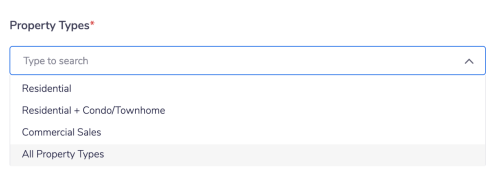
  • Property Type – Residential, Residential + Condo/Townhome, Commercial, All Property Types

Each lead will be added to SalesRabbit and assigned to the user associated with the PostalCode. As long as there’s activity in that area, your reps will be hearing about it. They can then spend their day talking with likely buyers instead of wasting time cold-knocking.

New Movers Set Up

To have Movers added to your SalesRabbit account please reach out to your CSM or support for assistance. 

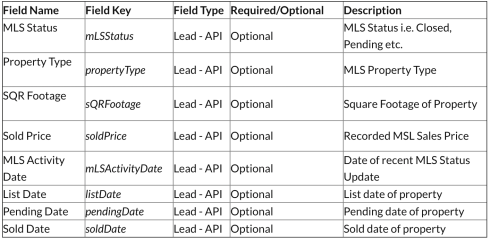
1.) Add MLS Lead Custom Fields (Optional)

There are additional pieces of information that can be captured with Custom Fields in SalesRabbit. If the custom fields are not added they will simply be omitted from the lead created in your account. Note your account must be Pro+ in order to add custom lead fields: 

2.) Navigate to the Marketplace and click “Add-Ons”

Note: You must be an account admin to be able to access the Marketplace.

3.) Click on the “Movers” card, select “Configuration” and click “Enable”

Note: Movers must be enable on your account for the configuration tab to be visible.

Feed Configuration

4.) Configure Event

Event is broken down into three categories and defined as the following:

  • Just Close – The home purchase has closed
  • Under Contract – The home is under contract to close but has not yet closed
  • Just Listed – The home is listed on the market but is not under contract and has not closed

5.) Configure Frequency

Frequency controls how often you want leads added to your account as the following options: 

  • Real-time – Movers uploads leads as soon as they are available
  • Daily  – Movers uploads leads every morning at approximately 5:00AM MST/MDT
  • Weekly – Movers uploads leads every Monday at approximately 5:00AM MST/MDT
  • Monthly – Movers uploads leads on the first day of the month at approximately 5:00AM MST/MDT

6.) Configure Lead Delay

Some users want a delay to allow new home buyers to move into their home and therefore want a delay lead time. It is defined as the following:

  • None – No delay on the leads uploaded 
  • 1 Day – Leads are uploaded 24 hours after the event 
  • 1 Week – Leads are uploaded 7 days after the event 
  • 2 Weeks – Leads are uploaded 14 days after the event 
  • 1 Month – Leads are uploaded 30 days after the event

Property Filters 

Movers has the ability to filter property attributes that are uploaded to your account.

7.) Configure Property Type

Property types are defined as the following:

  • Residential – All residential single family homes excluding townhomes and condos
  • Residential + Condo/Townhome – All residential single family homes including townhomes and condos
  • Commercial – Commercial properties
  • All Property Types – All property types available

8.) Configure Property Maximum & Minimum Values

Users have the ability to filter the minimum and maximum list price of the property. This is optional in the configuration.

Postal Code Assignment

9.) Configure Postal Codes and Assigned Users

Leads added to SalesRabbit MUST be assigned to a user in SalesRabbit. By selecting postal code assignment, leads generated are uploaded and assigned to the assigned user. There is no limit to how many users and postal codes are assigned.

*All leads generated are counted against purchased lead credits 

Default Lead Status 

10.) Configure Default Lead Status

Leads added to SalesRabbit must have a default status. We encourage users to add a “Movers” status to the account but it is not required. All leads uploaded will have this default status.

11.) Click Finish

That’s it, you are now configured to receive Movers leads! If you have any questions or issues please reach out to support or your CSM.

Find the New Movers Now

If you are interested in having Movers added to your account, please reach out to your CSM, our support team at 801-418-9009. If you need more guidance, schedule a free demo with us today so we can help you start finding more leads today. 

Access Better Homeowner Information with DataGrid AI

Brady Anderson

DataGrid AI feature officially launched

Are you wasting precious time selling to under qualified customers? Now you can know who is qualified for your product before you knock on the door. Many companies don’t use sales data to guide their reps, if you fall in that group you’re making your job harder.

Upgrade to DataGrid AI and easily track leads, manage reps, and close deals faster. DataGrid AI uses your existing customer data and AI modeling to identify the prospects who are most likely to buy, making it the ultimate tool for an intelligent sales process. Learn more about what DataGrid AI is, why you should use it and webinar registration.

What is DataGrid AI?

DataGrid AI is a new feature at SalesRabbit. This product is special because it uses your existing customer data to analyze and rate addresses and areas, so your teams and reps can do intelligent contacting with the prospects who are most likely to buy. That means no more wasting time with unqualified or uninterested customers, you make the most of your selling hours.

DataGrid vs. DataGrid AI

DataGrid AI is a new and improved version of our current DataGrid product. If you’re a current DataGrid user you’ll recognize some similarities in these products, but with DataGrid AI you get more information on the homeowners, a detailed buyer score (scale 1-10) and scoring of neighborhoods and areas all across the United States that helps you find your ideal customer faster. These new scoring models of customers and areas is shown as a clean map overlay with clickable house pins to keep you organized.


Why Choose DataGrid AI?

If you don’t use sales intelligence right now, using DataGrid AI takes all the guesswork out of your sales process by helping you:

  • Quickly identify high-opportunity homes and areas.
  • Get the most accurate homeowner information.
  • Stop wasting time with bad prospects.

Selling without data intelligence is like brushing your teeth with no toothpaste. There are many benefits to using our features—especially DataGrid AI so embrace the use of technology to skyrocket your sales leading into the summer season.

See DataGrid AI in Action

DataGrid AI tells you exactly where to go to find your best customer, who you’re going to be talking to and all the information you’d need to sell faster all in one feature. To learn more about DataGrid AI and SalesRabbit, claim your spot at our free webinar Tuesday May 25th at 11am MST where our VP of Customer Success, Mike Hilverda, explores everything you need to know about this exciting new feature.

Simplify Your Storm Tracking Process With Weather

Brady Anderson

Easily enable Weather for your SalesRabbit account now

Weather maps are key for companies who want to quickly and effectively work areas with roof or home damage. Unfortunately, many companies are wasting a lot of time and money with weather solutions that just aren’t working. Luckily we’ve made things easier and built storm map overlays directly into the app to help you can quickly find, track, and sell your ideal leads. When you’re ready to close a deal, we can generate comprehensive historic weather reports in minutes.

What does this Add-on Do?

These weather reports are powered by the top names in insurance data, which means that you’re getting the same data as insurance analyzers. You can operate in full confidence that the reports are ready for any insurance claim. This Weather add-on also includes:

  • Display 3 map types: Hail Size, Hail Probability, and Wind Gust.
  • Generate historical weather reports going back two years.
  • Unlimited map overlays.
  • Responsive Weather notifications.

Try Weather Today

It’s time to take control of your weather data and improve your sales process. If you are interested in having Weather enabled on your account reach out to your CSM, or our customer support team at 801-418-9009 to get started.

Find Deals Faster with DataGrid AI

Diana May-Jennings

DataGrid AI leads you to your best customers faster

DataGrid AI is a brand new feature at SalesRabbit. This product is special because it uses your existing customer data to analyze and rate addresses and areas, so your teams and reps can do intelligent contacting with the prospects who are most likely to buy. That means no more wasting time with unqualified or uninterested customers, you make the most of your selling hours. Keep reading to check out how it works, why it’s so successful and how you can get it for your SalesRabbit account.

How Does DataGrid AI Work?

DataGrid AI uses a method called Buyer Score Modeling to give you the best insight possible into your potential customers. Our DataGrid AI takes your customer data and uses AI model training and a database of 280 million individual records with 600+ data points per individual to generate Buyer Scores for all potential leads and territories. These scores rate the prospect’s likelihood to buy from you so you know what houses to prioritize and which ones to avoid.

Attributes Used in DataGrid AI:

  • Total Homes
  • Owner Occupied
  • Credit Rating
  • Home Value
  • Square Footage
  • Year Home Built
  • Length of Residence
  • New Movers
  • Age
  • Household Income
  • Household Size 

Clean Area Map Overlays

To simplify your map’s appearance there are DataGrid Areas. These areas provide sales intelligence about what areas are prime for selling with simple color coding: green for the highest score in our model, orange for both high and low buyer scores, and lastly red labels the lowest score in the customer model.

Simple House Pins

Along with the map overlay, DataGrid pins give a quick and easy look into what customers are best to target. Every home scored is scored individually to match your ideal customer. In the app you’ll be able to see a pin populated above every house that we have data for. This is a clean and simple way to give you more accurate consumer data on a 1-10 scale.

Chat With Us Now!

DataGrid AI will be officially launched on May 19th. But to get in on the feature contact your customer support manager or our CS team at 801-418-9009 or visit salesrabbit.com to upgrade from DataGrid to DataGrid AI or add this feature now!

What Is SARA Plus?

Diana May-Jennings

SARA Plus is the next evolution of the industry-leading AT&T and Viasat order entry software SARA. The need for the dealer to manage more of their business in one simple interface was heard and SARA Plus is the answer. Partnering with SalesRabbit, SARA Plus now has everything the dealer needs to run their business. Learn about what this integration does and how you can enable it for your account.

SalesRabbit and SARA Plus are integrated to improve lead management

What does this integration do?

  • Passes your lead data directly into SARA Plus from your SalesRabbit account.
  • Automatically transfers agreement information to SARA Plus system.
  • Pushes data into SARA Plus for an eligibility and serviceability check.

What data is transferred into SARA Plus?

  • First Name
  • Last Name
  • Phone
  • Street Address
  • Apt/Suite
  • City
  • State
  • Postal Code
  • SSN
  • Date of Birth

Sara Plus | Set up – Eligibility Check

The following steps are required to setup the Sara Plus integration through the SalesRabbit Marketplace. Note: This integration is only available to customers on SalesRabbit’s Pro or Enterprise membership plans. Additionally administrative access is required in order to access API keys and other credentials/settings in configuring this integration.

Part 1: Create SARA Plus ID Field

#1 Go to SalesRabbit and login. On the left hand side, click “Settings”

#2 Next, click on “Custom Fields”

#3 Create a field called “Sara Plus Customer ID” and make sure the text matches the screenshot.

#4 Create another field called “Sara Plus Order URL”. This wont be added to the form, but will be used in a later step.

Integration Set Up

The following steps are required to set up the Sara Plus integration through the SalesRabbit Marketplace. Note: This integration is only available to customers on SalesRabbit’s Pro or Enterprise membership plans. Additionally administrative access is required in order to access API keys and other credentials/settings in configuring this integration.  

Part 1: Form Creation

#1 Create a New Form. Make a section called Contact Details and import the following Lead fields.  

sara plus att

Note: Field API name MUST match the example provided. All fields are required except for First Name, Last Name, and Apt/Suite.

#2 Turn on Custom Form Responses.

saraplus att

#3 Click on “Publish” Button and confirm.

Part 2: Obtain Sara Plus API Key

#1 Go to “Sara Plus” and login. In the top menu bar, navigate to ‘Admin>API Admin>API Access’.

sara plus salesrabbit

Part 3: Find Dealer and Conn ID

#1 In the top menu bar, navigate to ‘Admin>Dealer Config>Dealer Data’. There you will find your DealerConnID and your ConnID.(Refer to screenshot)

salesrabbit sara plus

Part 4: Configure Sara Plus Integration

#1 Navigate to the Marketplace under “Integrations”. (Must have admin access)

#2 Select the Sara Plus Integration Card.

sara plus integration

#3 Navigate to the “Configuration” tab and click “Enable”.

#4 Select the Sara Plus Eligibility Form from the dropdown and click Next.

selling with sara plus

#5 Select the Sara Plus Service Check Form from the dropdown and click Next.

sara plus sales

#6 Input your API Key from Sara Plus and click Next.

sara plus sales team

#7 Insert the Sara Plus Dealer Conn ID then click Next.

sara plus dealer

#8 Input your ConnId from Sara Plus and click Finish.

sara plus using

Note: If you wish to disable or reconfigure this integration at any time you can do so by clicking “Disable” or “Reconfigure” respectively.  Additionally, if the integration is currently live you should see an “enabled” indicator on the integration.  Your Sara Plus integration should now be live and allow you to create leads in Sara Plus through form submission!

sara plus direct

Set Up Your Integration Now

If you’re interested in using any of these powerful integrations, any and all of these integrations can be set up through our Help Center portal, the Integration Marketplace or by reaching out to your account CSM or support team at support@salesrabbit.com, 801-418-9009.

SalesRabbit

👉 Learn more about the best field sales management platform.

7 Steps to Get a Sales Referral + Scripts

Sean Huckstep

Leverage customer referrals for faster and easier lead generation

Sales thrives on lead generation. There are many ways to get new customers but one of the most overlooked methods is referrals. If you don’t get referrals easily it’s probably because you either have a fear of asking or there are some technical mistakes you are making when you do ask. To learn a better process for starting the conversation and what to say to your referral after getting their information, check out our 7 step process and script examples now.

Why Ask For Referrals?

What “referral” means in this case is when you as a sales rep or rep for your company asks a current customer if they know of any friends, family, or neighbors that would be interested in talking to you or wanting to know more about your service. This lead gen method is overlooked sometimes because reps either don’t think to ask customers for referrals or they’re scared to ask.

Sales referrals work because they help bridge the trust gap between you and the referred prospect. According to Sales Readiness Group, people are four times more likely to buy when referred to by a friend. Moreover, 92% of people trust referrals from people they know. 

The 7 Step Referral Process

Now that you know referrals lead to trust and more sales, this is how you start the conversation:

#1 Transition Statement:

  • First things first, thank them.
  • Build them up: “Thank you for who you are and making an investment in your future. 
  • Transition: “Maybe you can help me in another way.”

#2 Clearly ask for a referral (without using the word referral):

  • Relate with them: “Like you, I really prefer to do business with people who are friends or friends of friends. I’m looking to be introduced to people who might share similar values and beliefs as you.”
  • Create a buying atmosphere: “Based on who you are and who you know, who would be a good person for me to talk to? My goal is to speak with every person who needs to know about who we are and what we do. If they decide to work with us, great, and if not, that is okay.”

#3 Paint the Picture:

  • Put them in your shoes.
  • Tell them specifically who you are looking for: “If you were me [insert elevator pitch/what you do], who would you go see?

#4 Isolate the Options:

  • Start broad.
  • Identify their circle of influence.
  • Get specific.
  • Example: “Basically, I’m looking for anyone who… (list out as many specific criteria as possible). I know you are really involved in your [Circle of Influence] group. Who is the person you are closest to in the [Circle of Influence] group? Who did you sit next to at the last meeting?
  • Write down the referral.

#5 Write Down the Referral:

  • Don’t talk until they give you a name.

#6 Ask “Who Else”:

  • Do not get a pre-approach immediately.
  • Write down as much information as fast as possible.
  • Thank them for giving you a referral.
  • Ask “Who else?”: Thank you so much. This is really how I do business and this helps a lot! Who else might be a good fit to talk to?”

#7 Get Pre-Approach:

  • Decision maker’s first name?
  • What time are they home/in the office? “If you were me, when would you go to see them?”
  • What is their cell phone number?

Script Examples For Calling Past Clients to Get Referrals

Opening:

  • You: Hey is this [Prospect’s Name]?
  • Client: Yeah this is [Prospect’s Name]
  • You: Hey [Your Name] here with SalesRabbit, how is everything going?
  • Client: [Let them answer]
  • You: Great to hear. I was calling for two reasons, the first one was to get feedback and make sure everything is going well with your team using SalesRabbit. How is everything going with that?
  • Client: [Let them respond]
  • You: That’s great, what has been your favorite part so far?
  • Client: Helps keep track of things on a daily basis.

Transition:

  • You: That’s great to hear, you know out of all our customers that is a common piece of feedback that we get is [their response]. I’m glad to hear you are getting that benefit. Please continue to keep me posted with any good news you have. The second reason I was calling [Prospect’s Name] is it has been so fun getting to know you and your team over at [Company Name] and we love working and partnering with like minded people, I wish I had 10 people like you to work with everyday. I was cruising around on LinkedIn the other day and noticed that there would be several people that you are connected with that would be perfect for us to call on and one of those people is [LinkedIn Name] at [LinkedIn Company], how do you know him/her?
  • Client: [Let them respond]

Asking for Referrals:

  • You: That sounds great, it sounds like he would be a good one for us to reach out to and contact. Do you by chance have his phone number. What I’ll do is I’ll send you an email that you could send to him providing an introduction to me so you don’t have to do any work, would you be able to forward that email over to [LinkedIn’s Name] for me?
  • Client: Yeah, I can do that.
  • You: It also looks like you know [Next Referral you want to get].
  • Continue to get more referrals out of the same person.

Ways to Introduce Yourself to Referrals

  • Once you have the referrals and you want them to notify their friends for you. Read the person’s age and make your best guess at their preferred method of communication.
  • Choose 1 of the 3:
    • Call: Thank you so much [Client’s Name]! That really helps me out. One thing that I have found that most people appreciate, and that most of my customers prefer doing is giving a quick call over to the person that they are introducing me to. They like to do that so that their friends have a heads up that I’ll be touching base. Would you mind doing that?
      • Call Ideas: “Hi, is this [Referral’s Name]? Hi, my name is [Your Name] and my name might not ring a bell for you because you and I haven’t met yet. But the reason that I’m calling you is because you were recommended to me by a mutual friend we both know, [Client’s Name]. By chance, did he give you a heads up that I would be calling?
      • (Regardless of what they say) Well, he had the nicest things to say about you! [If possible, insert golden nugget/pre-approach for example]. He was telling me that you’re really into [….].
      • Great! Also, I’m just curious, how did you originally meet [Client’s Name]?[Let them tell the story]
      • That’s great. I have gotten to know him since he started using SalesRabbit for the last [Time they have been a customer]. I’ve been working with him to [insert elevator pitch, i.e. track his reps, help them define their sales process, create better lead distribution, etc.]
      • He mentioned that it might be worth it for me to give you a call and chat for a couple minutes. I know you work in the [Referral’s Industry] industry. How are you currently doing managing your sales team and the processes? [Let them talk]
      • Great, I would like to set up a webinar with you to walk you through what we do for companies like [Referral’s Name] and your company. Would this week or next week work better for you?[Schedule the appointment]
    • Text: Thank you so much [Client’s Name]! That really helps me out. One thing that I have found that most people appreciate, and that most of my customers prefer doing is shooting over a quick text to the person that they are introducing me to. They like to do that so that their friends have a heads up that I’ll be touching base. Is there any reason why you couldn’t do that in the next 24 hours?
    • Email: Thank you so much [Client’s Name]! That really helps me out. One thing that I have found that most people appreciate, and that most of my customers prefer doing is shooting over a quick text to the person that they are introducing me to. They like to do that so their friends have a heads up that I’ll be touching base. If I send you a little email that you can edit, would you be open to forwarding it along to your friend?
      • Email Template: Hi [Client’s Name], It was good to talk with you the other day. Thank you for the referrals. Would you please copy and paste the message below and email it to the referral(s) you gave me? That way they have a little heads-up when I call.
      • I hope you don’t mind, but I recently gave your contact information to [Your Name, Title] of SalesRabbit. [Your Name] is [one sentence summary of who you are and what you are doing to build credibility].
      • He is one of the best [insert what you do] in the world and I have found that a quick chat with him is, at minimum, educational and interesting.
      • [Your Name] will be calling you within the next week.

Start Asking for Referrals Now

If you still have any questions or worries about how to get referrals from your customers, talk to us today and we’ll help guide you to getting the referrals that’ll boost your business. This template might need an adjustment based on your company and services, but this is a basic way to start the conversation about referrals and start connecting more with your customers.

10 Fun Ideas For Your Next Sales Contest

Sean Huckstep

Use sales contests for a fun and competitive company culture

We know that not all competition is bad, in fact having a company culture of friendly competition can be a great way to motivate your employees and coworkers. If you’re struggling with ideas on how to start up some company contests, check out these 10 ideas and use what works best for the members and personalities of your team.

Try These Contests Out

  1. Sales Bracket: We all know and love march madness so bring it to the office. Create a bracket with your sales rep and set metrics that make the most sense to your team like: whoever makes the most cold calls by the end of each week moves up in the bracket, or whoever closes the most deals, etc. 
  2. Raffle Prizes: This is a pretty simple contest. Give your rep a set time period like, whoever closes the most deals by the end of the week gets to pick a random raffle prize out of a bucket. There’s added fun to the raffle prize because there are multiple options but the rep doesn’t know what their reward will be.
  3. Creative Pitching: Have a channel for all sales reps to share their most creative sales pitch anonymously and let the team vote for their favorite. A simple prize like a gift card would be great as a creative pitch reward. Having a contest like this can also inspire other reps to use these new pitches.
  4. Pair Selling: A fun way to level the playing field is to pair up your rookies with veteran reps and have the pairs face-off in daily, weekly, or even monthly competitions. The biggest benefit here is that your seasoned reps can help give personal tips and tricks to your new reps as they both try to win a prize.
  5. Flash Contest: Everyone loves leaving early on Fridays so here’s a contest to close enough deals and leave early. Spontaneously announcing a flash contest that meeting a certain quota in the last few days would mean every leaves early on Friday is a great way to push your team and avoid slacking throughout the week.
  6. Sales Leaderboards: Whether you prefer in-person or electronic sales leaderboards there are options for both. If you prefer a physical reminder, roll a whiteboard into the office and label out the reps stats for the day, week or month. But if you’d rather keep an electronic sales leaderboard, try our leaderboard feature in the SalesRabbit app.
  7. Double Commission Day: Money is a great motivator in sales so labeling a day of the year or quarter as “Double Commission Day” is a great way to get the reps fired up and closing deals left and right on this day specifically. This doesn’t cost more than it’s worth, the deals closed will continue to bring revenue and the higher commission will make the rep feel valued.
  8. Offer Catered Lunch to Salesman of the Week: Set an expectation like the sales rep with the most sales by Friday or the first rep to hit a certain number of sales first wins a catered lunch of their choosing for the team. The appeal here is that everyone is rewarded but the rep that won gets to pick their favorite food.
  9. Sales Poker: This is an interesting contest to try out. Each day someone hits a certain expectation of closed deals, calls or meetings scheduled, they get to pick a card. Person with the best 5 card poker hand at the end of the month wins a prize of your choosing. 
  10. Monday Morning Blitz: To start your week strong, incentivize your reps during a 1 hour contest on Monday morning. Set up something like this:  1 point per dial, 10 points per conversation, 2 points per voicemail, 50 points per SQL. The prize is up to you!

Start Competing Now!

Don’t shy away from starting friendly competition between your reps. Included competitions like these will naturally make reps push themselves, push others, and increase their work ethic to get the prizes you offer. Not all sales teams are the same so if you like some of these ideas but you know what prizes or metrics are more applicable to your team, adjust what you need. 

Introducing New Integration Marketplace

Scott Porter

Access our Integrations Marketplace Now

A new addition to our SalesRabbit integration platform is the Integration Marketplace. This hub was created for an easier pathway for integration configuration and to give you the possibility of custom integrations. To access this integration deck you must be a SalesRabbit user on a pro or above plan, to upgrade and access this marketplace contact your customer representative so you don’t have to miss out. 

Supported Marketplace Integrations

Here are all the current integrations in the marketplace. CRM, scheduling, communication, forms, data and many other types of integrations are offered through the marketplace. What you need to improve your sales process is offered here for your convenience, there’s something for everyone in our always updating hub.

  • Acculynx
  • Calendly
  • Chiirp
  • Contractor’s Cloud
  • Covve Scan
  • DocuSign
  • Enerflo
  • Evolve
  • FillQuick
  • Google Forms
  • HailTrace
  • Improveit 360
  • JobNimbus
  • JotForm
  • MarketSharp
  • Microsoft Dynamics
  • naturalForms
  • One Click Contractor
  • PestPac
  • PestRoutes
  • Pipedrive
  • Podium
  • Repcard
  • Salesforce
  • SARA PLUS
  • SecurityTrax
  • ServSuite
  • SOLO
  • Sunlight Financial
  • Sunrun BrightPath
  • Tier32
  • Tiled
  • Tray.io
  • Zapier

Check it Out!

If you’re interested in what other integrations we offer or to have us custom build and manage an integration specifically for you, contact our support team at (801) 418-9009 or at support@salesrabbit.com. We’re adding more and more integrations all the time, so stay tuned— and if you’re not seeing an integration you want or need, use our request tab in the marketplace to suggest it!

3 Most Asked Customer Questions + Help Center Solutions

Brady Anderson

Our Help Center answers your most asked questions

The Customer Support team at SalesRabbit gets questions ranging from different topics everyday, but they also get the same questions a lot too. That’s why we are sharing 3 of the most common questions that our support team answers often and the ideal way to fix the problem. If you need help with changing your password, using lead markers, or our device recommendations keep reading to find the solution. 

#1 How to Change your Password via Web

Note: This is available to all users in SalesRabbit that know their password and are seeking to change their password. 

#1 Go to app.salesrabbit.com and log in with your current email and password.

#2 Click your name in the bottom left hand corner and a pop-up menu will appear.

#3 Click “Account.” 

#4 In the upper right hand corner, click “Change Password.” 

#5 Insert “New Password,” retype it in “Confirm Password,” and click “Save.”

#2 How do I get lead markers to show on a computer’s map?

Is there a way to run SalesRabbit on a computer natively with mapping functionality and without any complex install process or setup? 

Yes. The following details how this can be done for both Macs, ChromeOS, and Windows.

Macs

You can install and run the iOS version of SalesRabbit on a Mac that has “Apple silicon”: https://developer.apple.com/macos/iphone-and-ipad-apps/.

To see a list of compatible computers here: https://support.apple.com/en-us/HT211814

ChromeOS

Your best bet for running the Android app on a computer is with a Chromebook. You can install and run the Android version of SalesRabbit on any Chromebook or other device that is running ChromeOS.

Windows

For those with a Windows operating system, an emulator would have to be used.

If you can stand the ads (mostly for games, as this is what these emulators are marketed for), or pay for a subscription to remove them, the following emulators will run our app on Windows:

Note: ***As our app was never designed to be run through an emulator, we cannot guarantee it will run without bugs. With that being said, Bluestacks reportedly works fairly well.***

https://www.bluestacks.com/

https://www.memuplay.com/

#3 Device Compatibility & Recommendations

At SalesRabbit we strive to constantly and consistently improve and better our software, in light of this effort, we release updates frequently. Ensuring that you keep your SalesRabbit app up-to-date, with the latest version, will provide for a better user experience.

The SalesRabbit Mobile app is available on Android through the Google Play Store and through Apple devices through the App Store.

Our software requires using the SalesRabbit app on devices that support its various features. While we support a wide range of devices, for the best user experience, we strongly recommend following the device recommendations below:

Apple

Device Requirement: iOS 13+

Device Recommendation: 2GB+ RAM

Android

Device Requirement: Lollipop 5.1+ (API level 22+)

Device Recommendation: 3GB+ RAM

When Utilizing the Web App we strongly recommend using Google Chrome. Our platform was built on Google Chrome and has the strongest optimization using Google Chrome. Many of our features function fine on other browsers, but some features, such as imports, only work using Google Chrome. 

Access our Help Center

If you have different questions you need answered, contact our support team at (801) 418-9009 or email them at support@salesrabbit.com for assistance. Or to learn more about what we can do for you and your sales process, schedule a demo for free. If you’re already a SalesRabbit user, login to our Help Center and get unlimited SalesRabbit resources.

Enhance your Sales Process with Salesforce

Diana May-Jennings

Salesforce is the world’s #1 customer relationship management (CRM) platform. We help your marketing, sales, commerce, service and IT teams work as one from anywhere — so you can keep your customers happy everywhere. 

What does this integration do?

  • Create a Lead in Salesforce
  • Update a Lead in Salesforce
  • Add files to the Lead in Salesforce
  • Create an Opportunity in Salesforce
  • Update the an Opportunity in Salesforce
  • Add files to an Opportunity in Salesforce

After a lead is created you can always edit the leads itself or add an unlimited number of documents as needed. 

What data is transferred into Salesforce?

  • First Name
  • Last Name
  • Business Name
  • Phone Number
  • Alternate Phone
  • Home Phone Number
  • Email
  • Street Address
  • Apt/Suite
  • City
  • State
  • Postal Code
  • Notes
  • All Files on SalesRabbit Lead

How to Set Up This Integration

The following steps are required to setup the Salesforce integration through the SalesRabbit Marketplace. Note: This integration is only available to customers on SalesRabbit’s Pro or Enterprise membership plans. Additionally administrative access is required in order to access API keys and other credentials/settings in configuring this integration.  

Part 1: Form Creation

#1 Create a New Form. Make a section called Contact Details and import the following Lead fields. 

Note: First Name, Last Name and Business Name are required, the other fields are optional.

#2 Turn on Custom Form Responses

#3 Click on “Publish” Button and confirm.

Part 2: Create Salesforce ID Field

#1 Go to SalesRabbit and login. On the left hand side, click “Settings“.

#2 Next, click on “Custom Fields”.

#3 Create a field called “Salesforce ID” and make sure the text matches the screenshot.

#4 Next, log into your Salesforce account.

#5 Click on the cog in the top right corner and click Setup.

#6 Next navigate to Fields & Relationships and click “New”.

#7 On Step 1, click “Text” and then next.

#8 On Step 2, enter “SalesRabbit ID” for the Field Label, 255 for the character length and “SalesRabbit_ID” for the Field Name.

#9 Step 3, configure the security for the profile and click next.

#10 On Step 4 double check your information and click save.

#11 Double check your field saved, you should see the field show as “SalesRabbit_ID__c

Part 3: Configure Salesforce Integration

  1. Navigate to the Marketplace under “Integrations”. (Must have admin access)
  2. Select the Salesforce Integration Card

#1 Navigate to the “Configuration” tab and click “Enable” 

#2 Select “add new account” from the dropdown and sign in to your Salesforce account.

#3 Select if you’d like to generate a Lead or Opportunity.

#4 Select your form from the dropdown.

Note: If you wish to disable or reconfigure this integration at any time you can do so by clicking “Disable” or “Reconfigure” respectively.  Additionally, if the integration is currently live you should see an “enabled” indicator on the integration.  

Your Salesforce integration should now be live and allow you to create Leads or Opportunities in Salesforce through form submission! If you have any issues or problems please reach out to support or your CSM for help configuring this integration. 

Check out More Integrations

A new addition to our SalesRabbit integration platform is the Integration Marketplace. To access this integration deck you must be a SalesRabbit user on a pro or above plan.

If you’re interested in what other integrations we offer or to have us custom build and manage an integration specifically for you, contact our support team at (801) 418-9009 or at support@salesrabbit.com. We’re adding more and more integrations all the time, so stay tuned— and if you’re not seeing an integration you want or need, use our request tab in the marketplace to suggest it!